To start using the GOALcity program, you need to follow a few simple steps:
1. Run the file "GOALcity_Medina_Free_x64.exe" and install the software by clicking the "Next" button.
2. Launch the GOALcity program using the shortcut 
3. After launching the program, the Connection Diagram window will open, allowing you to connect IP cameras.
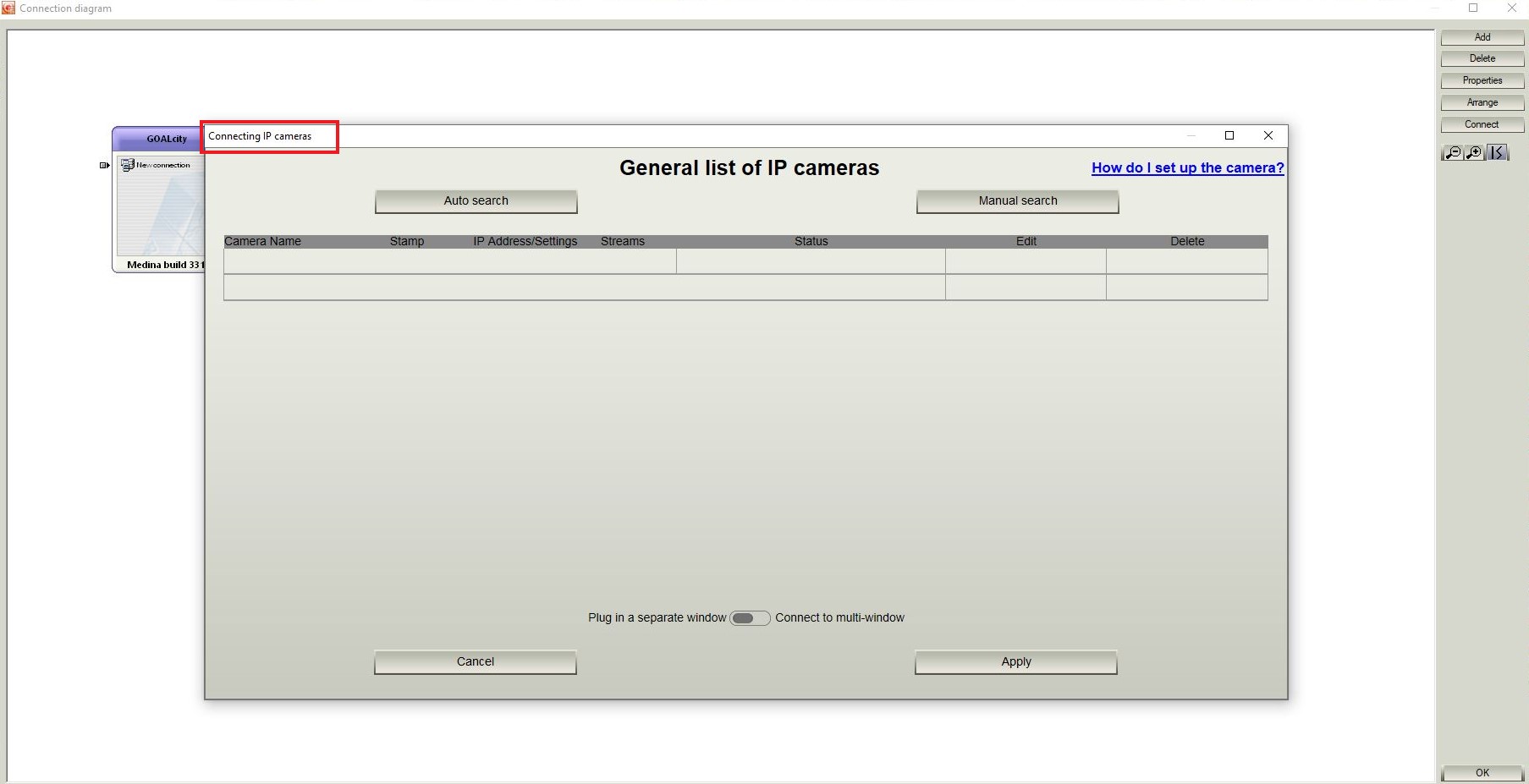
If you accidentally closed the Connection Diagram, you can open it using buttons  or
or  on the Main Control Panel.

4. Connect cameras using automatic or manual search.
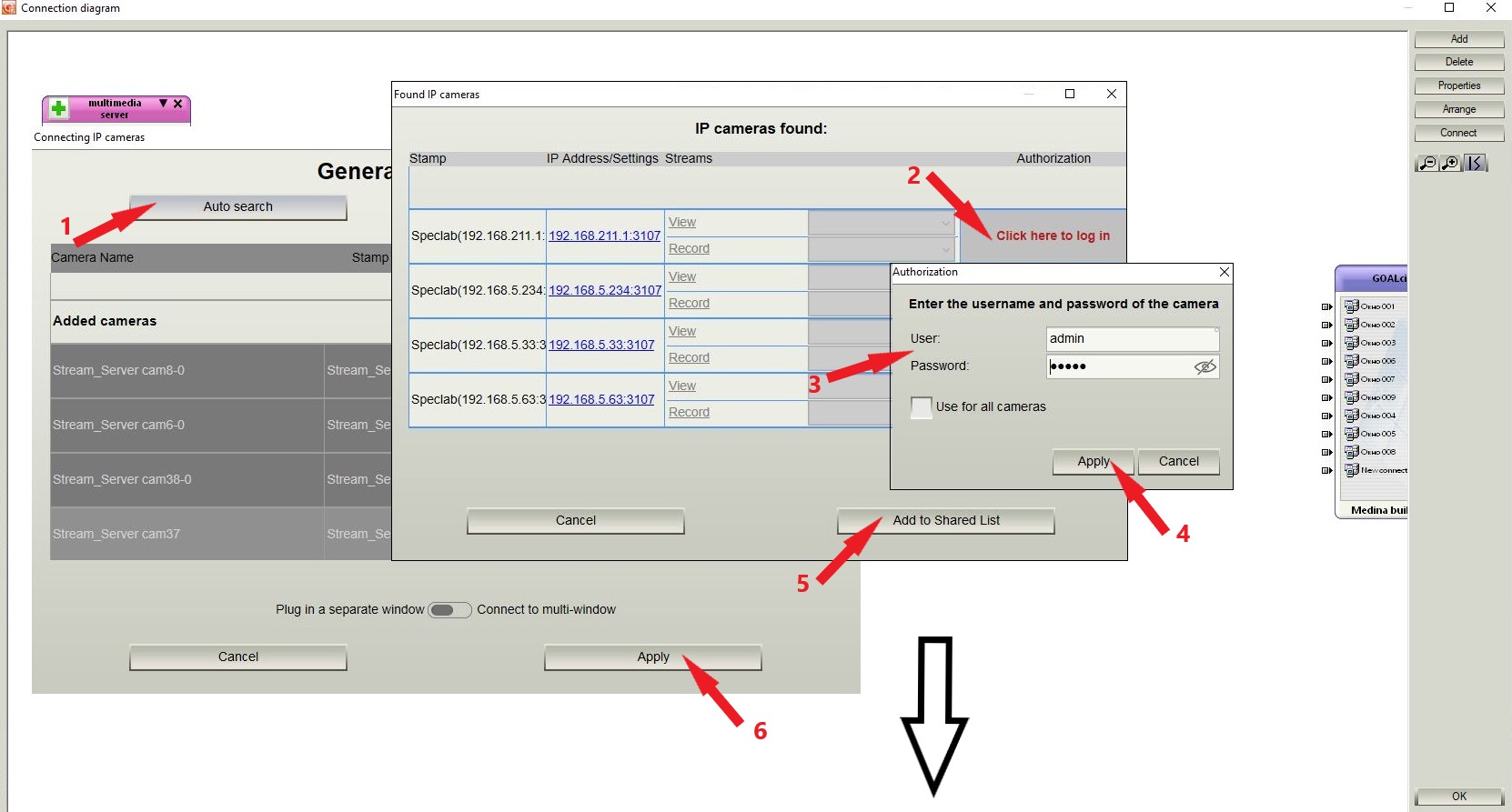
5. Create an archive in the Archive Server settings.

6. In order to set up archive and recording, go to Camera settings. To do this, move the mouse over the camera window and click the button  .
.
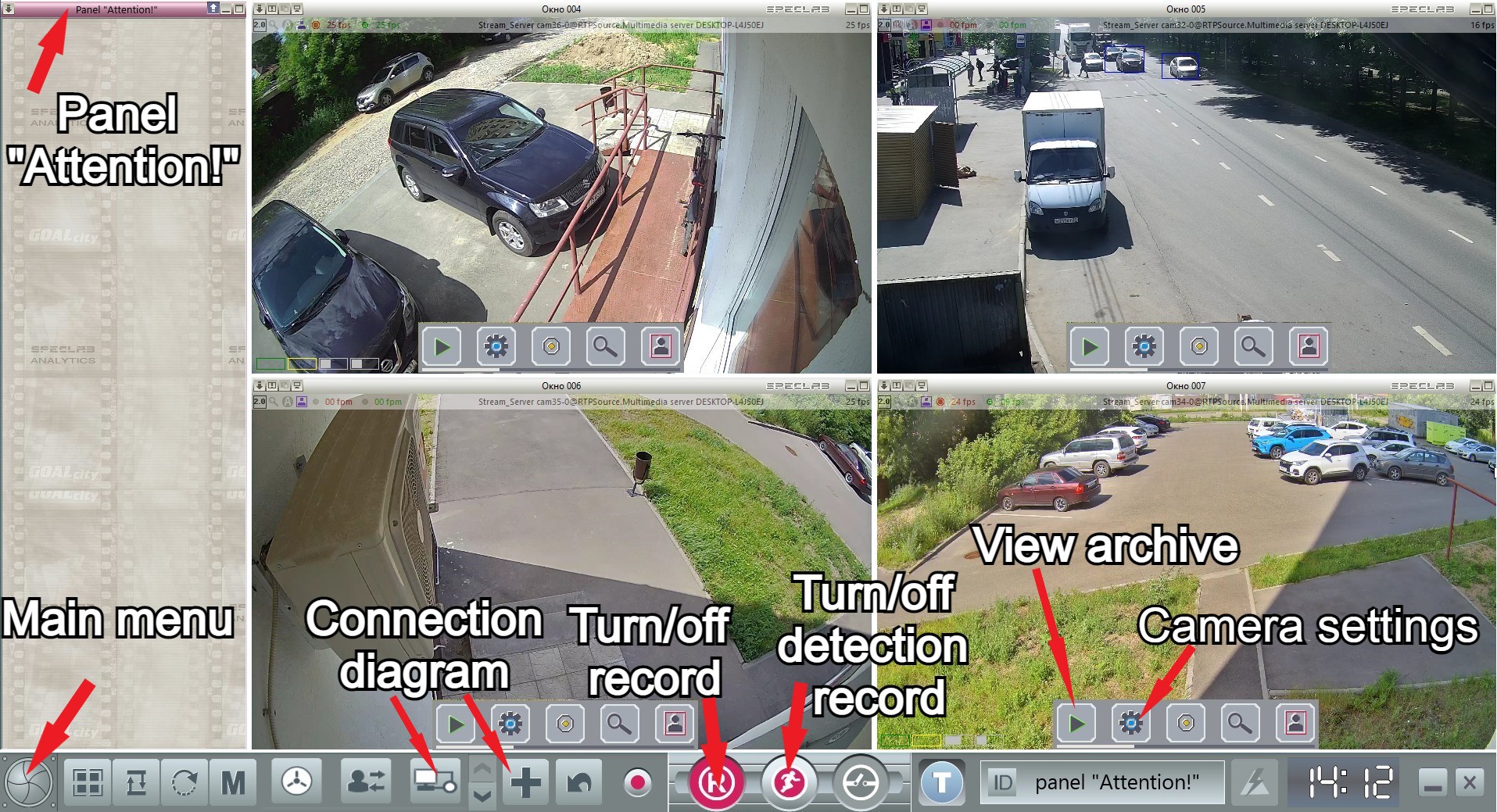
Then click on the Archive.
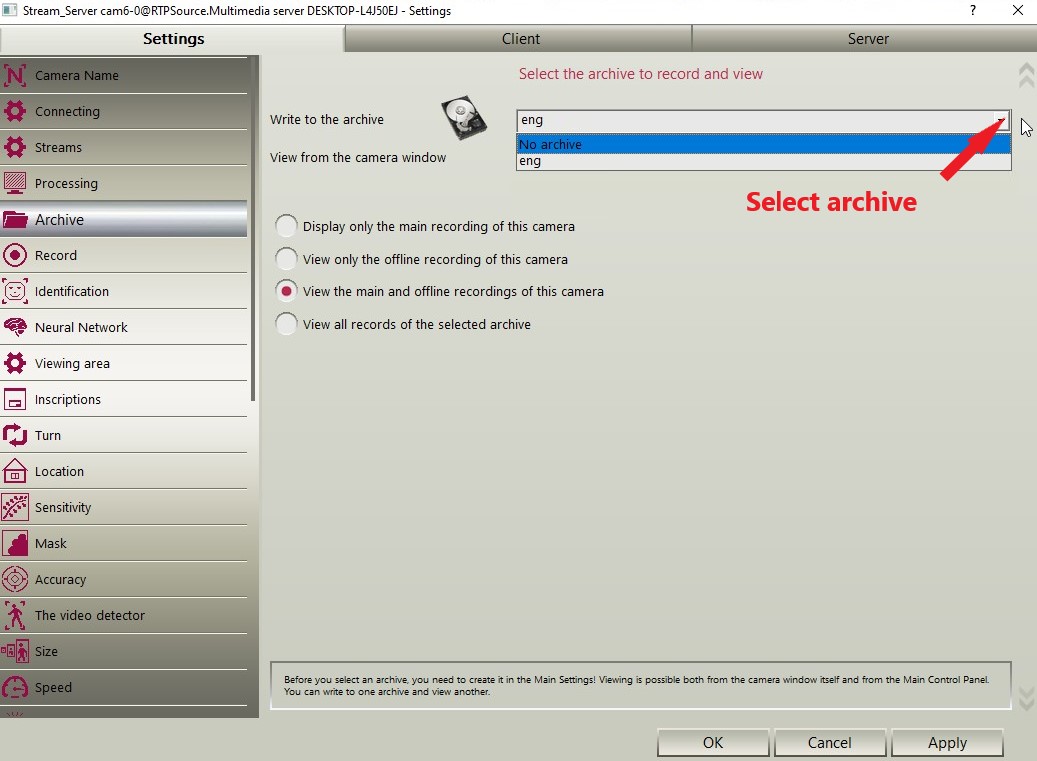
7. Open the Record.
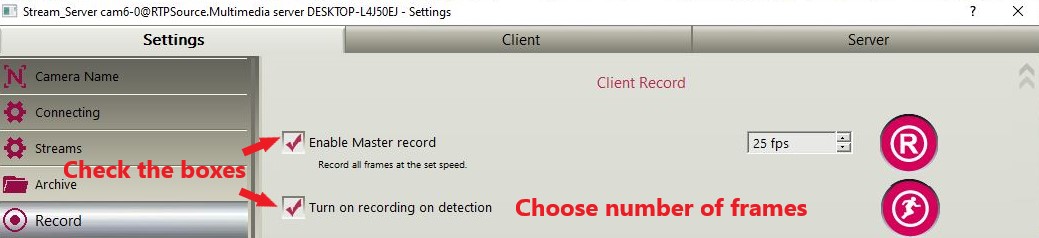
8. Do not exit the Camera Settings and go to the Neural Network.
You can choose Online or Offline neural network.
Online - a variant with constant analysis of each frame, which works on a video server. As a hardware part, hardware processors of video cards are used. For the neural network to work, we recommend installing an NVIDIA video card that meets the minimum requirements (video card memory is at least 4GB).
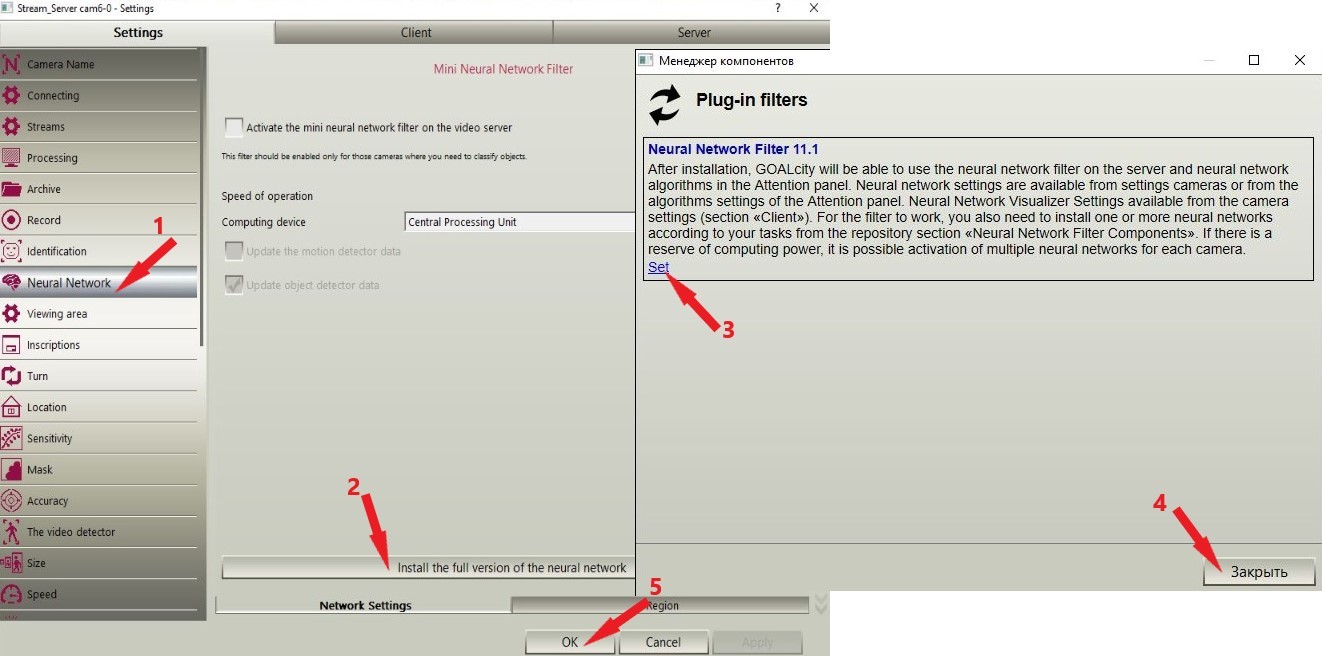
Please note that after installing the neural network, you must restart the program and service.
Without this step, the neural network will not work! After restarting the program and service, go to the Camera Settings again, as described above, and go to the Neural Network tab.
Now you need to install neurocomponents. You can activate them individually or combine them depending on the tasks.

Restart the program and service again.
Please note that for the neural network to work, you must activate it on the video server and select a computing device. You can do this in the Camera Settings, in the Neural Network tab.
By default, the processor (CPU) will be selected as the computing device. However, to improve the performance of the neural network, we recommend choosing a CUDA computing device.

You can also activate Offline Neural Network.
The offline version does not require video cards and runs on a regular CPU of the client side of the application. Only the frames of the event are analyzed, and not the entire data stream from the cameras. For Offline neural networks, even weak laptops or tablets can be used.
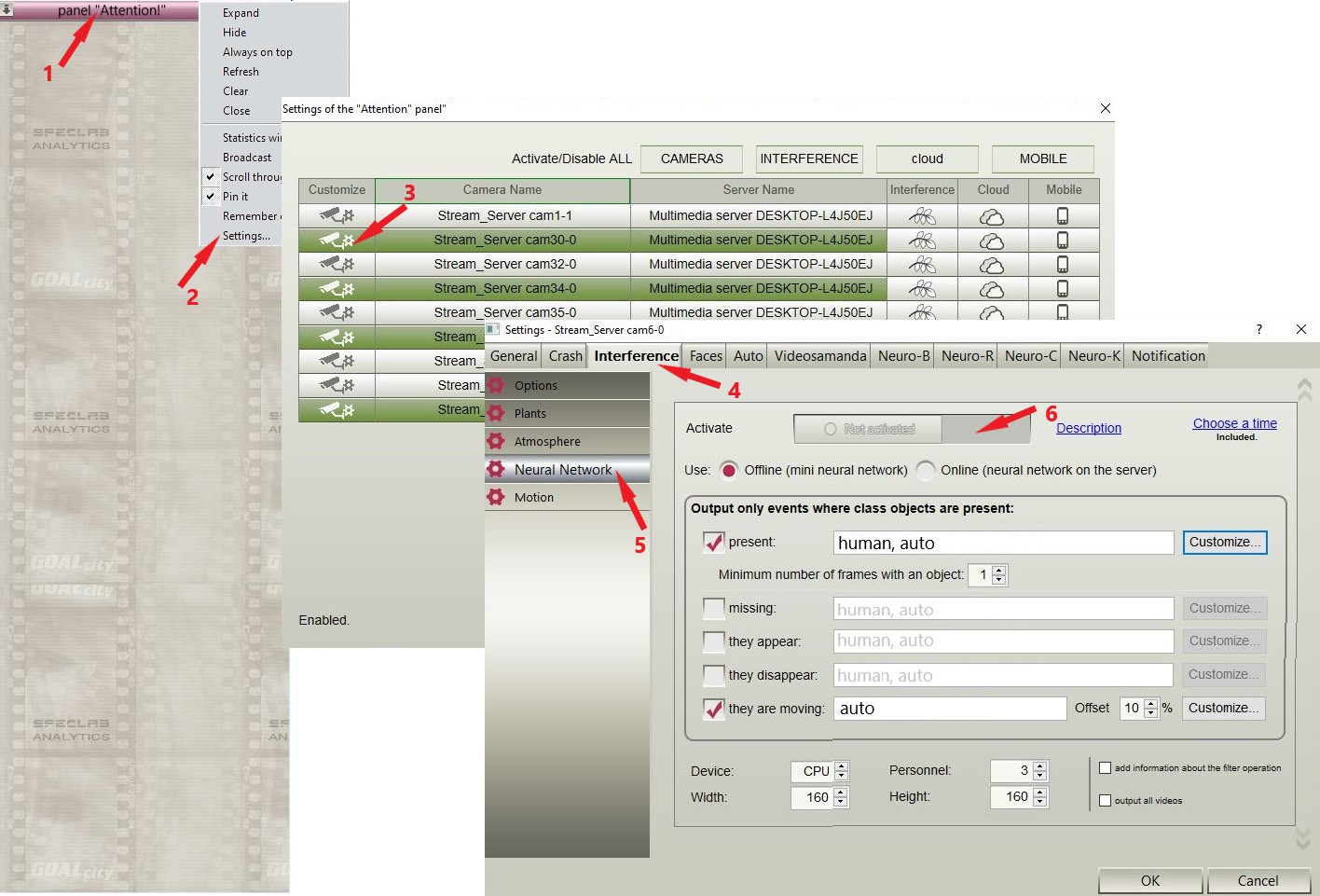
In order to activate the Offline Neural Network, go to Settings on the Attention panel. Then open the Interference tab, the Neural Network item. Set the switch to the ACTIVATED position.
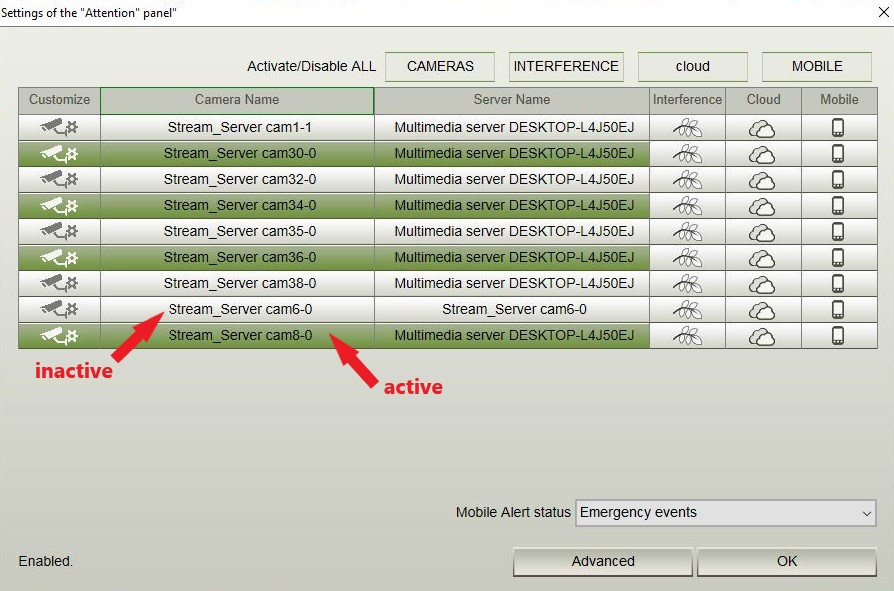
9. Activate the cameras in the Attention panel.
If you have any questions, please contact our technical support.