To get acquainted with the program, the Free version of the GOALcity analytical video surveillance system is perfect. To get a link to the download page, you need to fill out the free version request form on the website.
An email will be sent to your email address with a link to download the program, as well as a login and password to access it.
To start working with the GOALcity program, you need to open the installation file GOALcity_Medina_Free_x64.exe
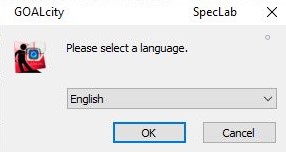
You will see a window with the ability to select a language. After selecting the language you need, click "OK" to continue the installation.
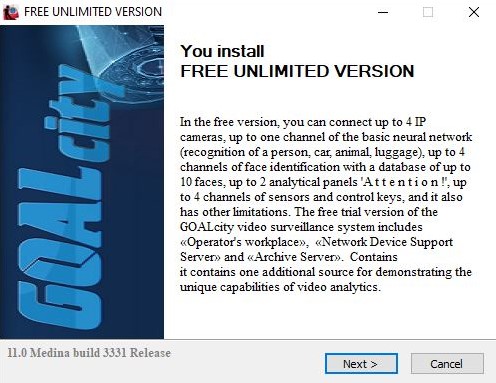
Then a window will appear with information about the features of the free version of GOALcity. Click "Next" to continue.
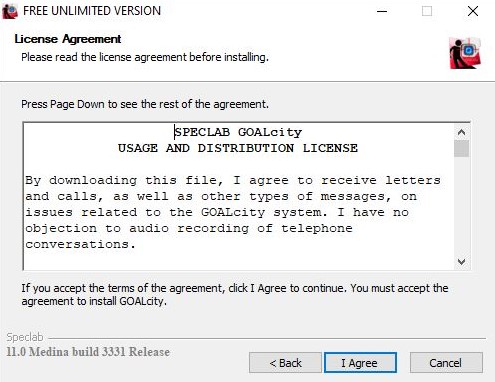
Next, the installation wizard will prompt you to read the license agreement. In order to agree with the license agreement, you must click the "I Agree" button. If you click the "Cancel" button, the installation of the program will be interrupted.
You must select the folder where GOALcity will be installed. By default, this is C:\Program Files\Speclab\GOALcity. To select a different folder, click the Browse button and then the "Next" button.

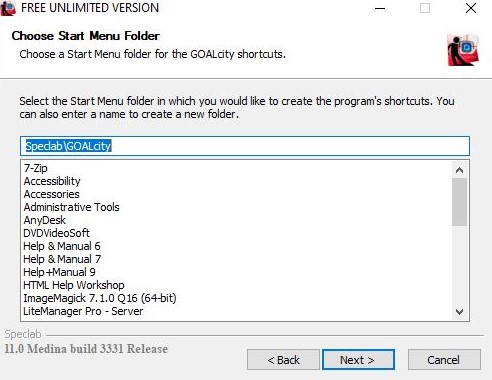
Then a window will open in front of you with the ability to select a folder in the Start menu to store shortcuts to the program. After selecting the folder, click the "Next" button.
Next, the wizard will notify you that the Collection of technical information GOALcity program will be installed on your computer, which is designed to collect technical data when problems with the program are detected. We recommend that you check the Create a shortcut on the desktop box. Then click "Next".
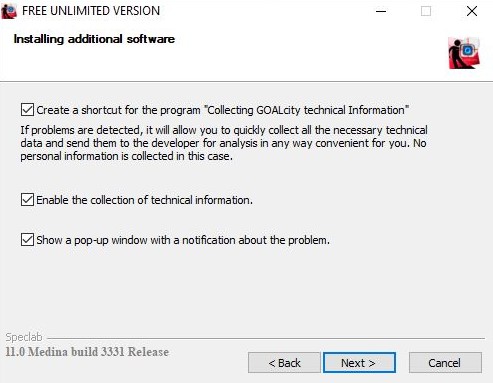
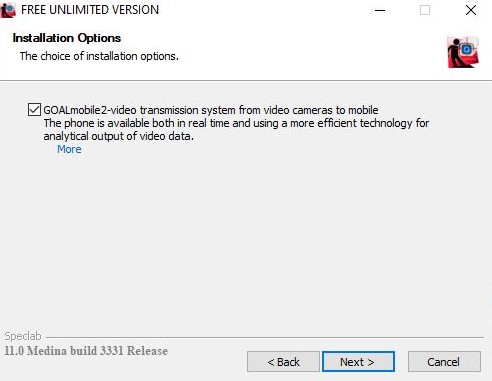
To install a system for transmitting video from video cameras to your mobile phone, check the "GOALmobile2" item in the window that opens.
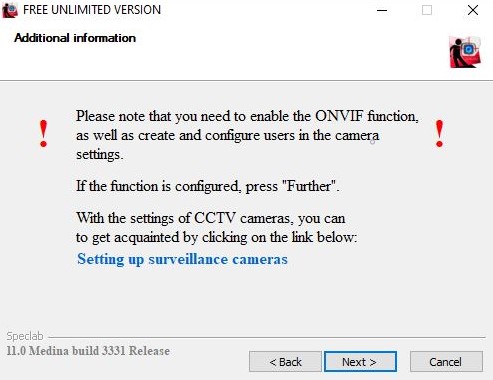
Next, you will see a window with additional information about connecting IP cameras. If you want to know more information, then click on the phrase highlighted in blue. Then click the "Next" button.
Next, the installation will begin. This may take some time, please wait.

After the installation of the GOALcity program is completed, the wizard will prompt you to launch the program and read the quick setup instructions. Please tick the required items.

It is worth noting once again that the free version of the GOALcity program has a number of limitations, which you can learn more about here.
To obtain a license, you need to contact SpecLab and our specialists will be happy to answer your questions.