The offline version of the neural network does not require video cards and runs on a regular CPU of the client side of the application. Only the frames of the event are analyzed, and not the entire data stream from the cameras. If it is activated, any event video before going to the "Attention!" panel, is checked for the presence of objects of the specified classes in it. If there are no objects in all frames of this clip or if there are no objects of the specified activity type, the event clip is dumped into the "urn".
For Offline neural networks, even weak laptops or tablets can be used. In order to activate the Offline neural network, you need to:
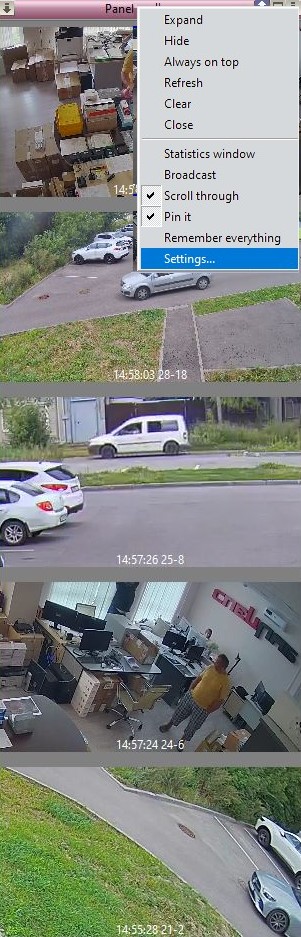
1. Go to "Panel Attention!" Settings
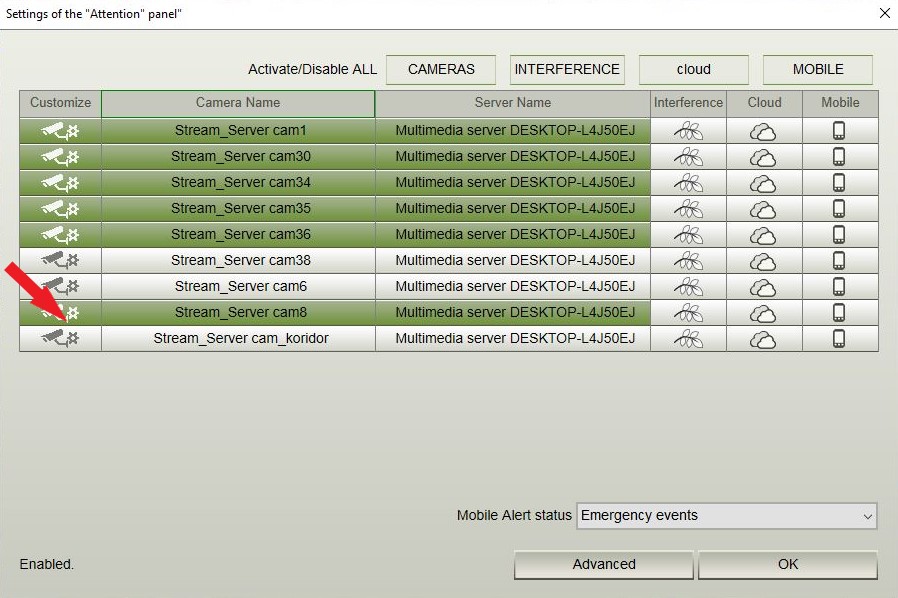
2. In the window that opens, select the required camera and go to its "Settings".
3. Next, go to the "Interference" tab, select the "Neural network" item and activate the algorithm.

Using the settings, you can choose which objects you are interested in. By default, two conditions are set: The presence of a person or a moving vehicle in the frame. It is logical that just a standing car does not contain event information.
You can set up the algorithm in such a way that the "Attention!" only events were displayed where objects of classes:
- present (The program will display only those clips that contain objects of the specified classes);
- missing (The program will display only those videos that do not have objects of the specified classes);
- appear (The program checks the video frame by frame, and if there were no objects of the specified classes at the beginning of the check, but they are present in subsequent frames, this will be considered an occurrence. Thus, only those algorithms will be displayed on the "Attention!" the time of which the objects of the specified classes will appear);
- disappear (The program checks the presence of objects of the specified classes in the video frame by frame, and if there were objects at the beginning of the check, but they will not be in subsequent frames, this will be considered the disappearance of objects. Such a video will be displayed on the panel);
- move (All clips on which objects of the specified classes are moving will be displayed. For objects such as cars, it is most often necessary to track not their presence in the frame, but only movement. Unlike a person, a car can stay in the frame forever, which does not add information content , but only increases useless drawdowns).
Setting up class objects.
To add objects:
1. Check the required item with a checkmark and after the "Settings..." button becomes active, click on it.
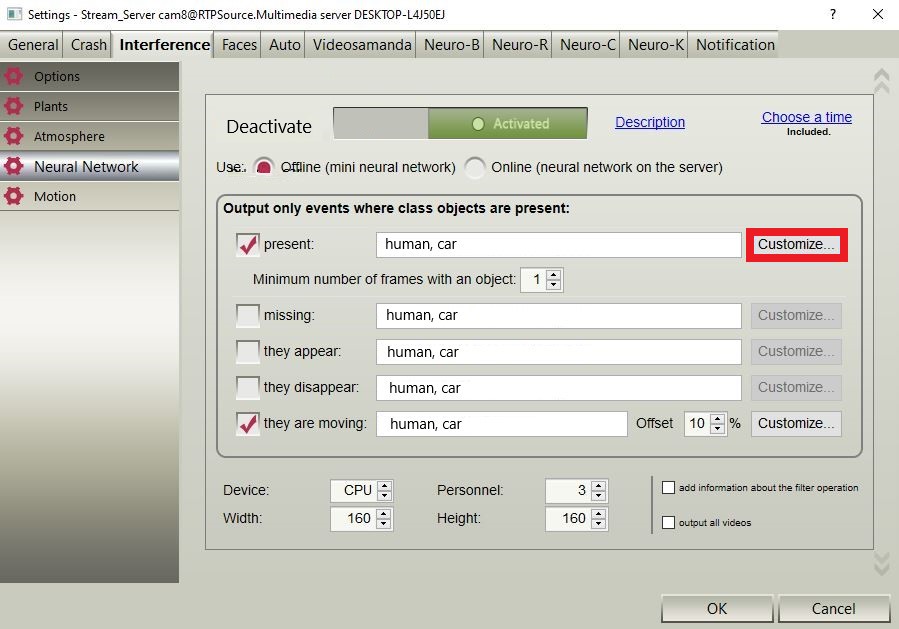
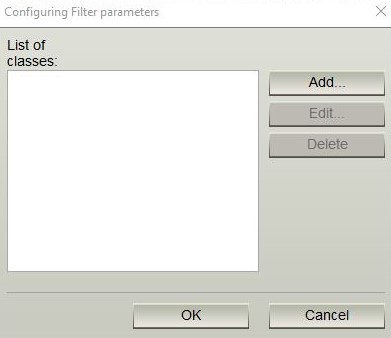
2. You will see the "Filter Settings" window. Click the "Add" button.
3. In the "Setting class parameters" window, specify:
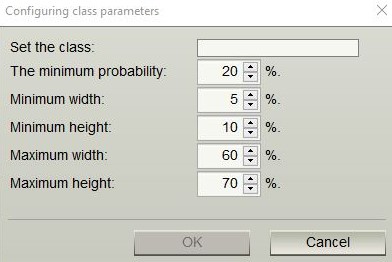
Class - select according to the installed neural network.
Minimum probability - is responsible for the accuracy of comparing the detected objects with the neural network database. If useful objects are not detected, this indicator must be lowered. If useful objects are defined as interference - increase.
The minimum width of the detection object. Set as a percentage of the frame size. This indicator is required to screen out especially small (in width) objects. The minimum height of the detection object. It is set as a percentage of the frame size and is required to filter out especially small (in height) objects.
The maximum width of the detection object. Set as a percentage of the frame size. It is required for screening out especially large (in width) objects. The maximum height of the detection object. Set as a percentage of the frame size. This indicator is required to screen out especially large (in height) objects.
4. After setting all the parameters, click "OK" and the class you selected will appear in the "Setting filter parameters" window. Click "OK" again.