An online neural network is a variant with constant analysis of each frame, which runs on a video server with powerful NVIDIA cards installed.
As a hardware part, video card processors are used here. In order to install a neural network, you need:
1. Go to Camera settings by clicking on the button  on the pop-up panel of the camera you have selected.

2. Go to the Neural network tab and click on the Install the full version of the neural network button.
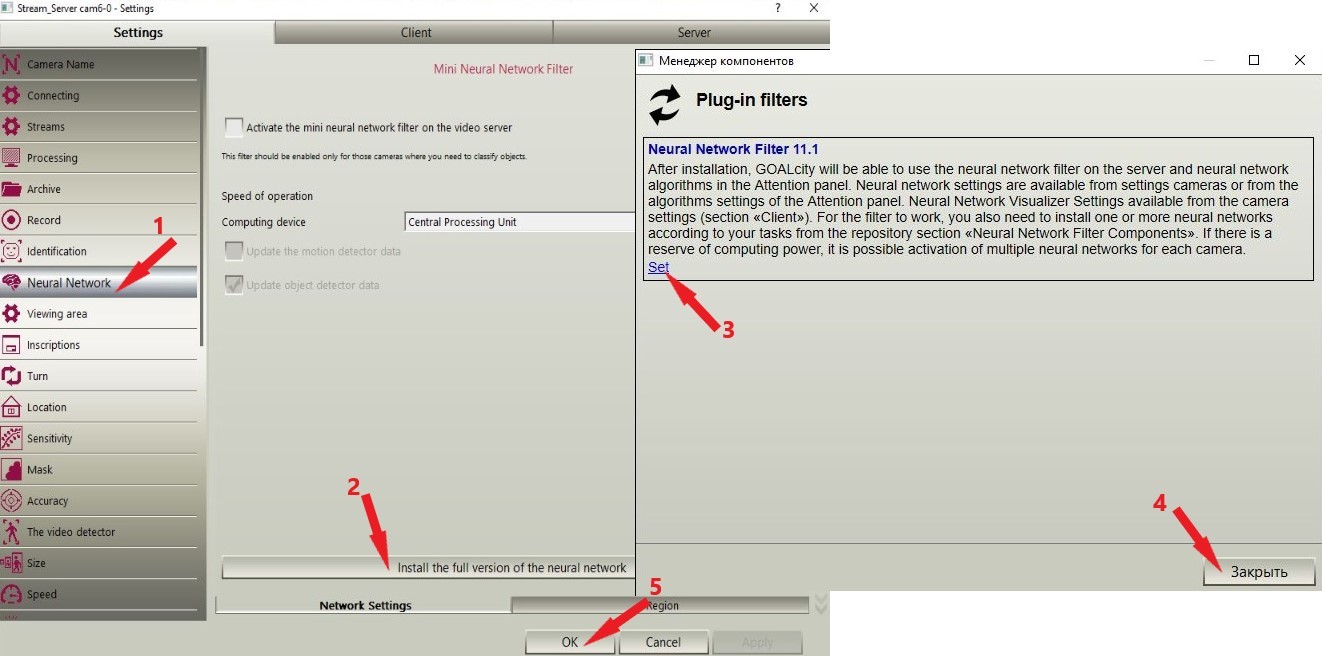
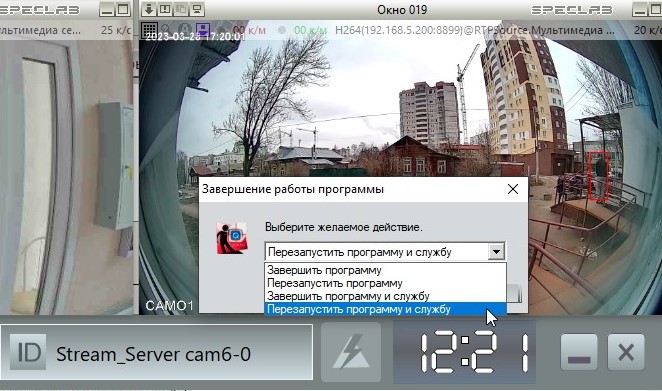
3. Restart the program and service. To do this, you need to exit the camera settings, press the button  on the Main panel and select Restart the program and service in the window that opens.
4. After the neural network is installed, you need to activate it and select the CUDA computing device on which the neural network will work. You can do this in the Camera Settings.

5. In order to use the neural network, it is necessary to install the components of the neural network filter, which are used to solve non-standard tasks based on the classification of objects. To install them, open the Components, select the set of classes you need and click Install.

6. After that, you need to restart the program and service again.
7. Next, go to Camera Settings -- Neural Network and select the Components. Here you need to select the neural network filter component you need and click "Connect" and then "OK".

Please note that the GOALcity program allows you to install several components of the neural network filter at once.